Rhino 8 & 9 · Windows · v0.8.1
Construction drawings, drawn in Rhino.
60+ drafting commands for grids, walls, doors, dimensions, text, layers and blocks. No second app required. Sign in and start a 7-day trial.
One toolkit, one finished sheet
Not a pile of loose scripts in a panel. The commands follow the order a construction drawing is made in.
Finish the sheet in Rhino
Plans, elevations and details stay in one file. No exporting, no redrawing lines, no re-dimensioning.
Built around Chinese drafting conventions
Grid bubbles are grouped automatically, walls can be trimmed and capped, and level and section marks are one command away. Open a colleague's drawing and carry on editing.
Works with native Rhino objects
Layers, blocks and dimensions are still Rhino objects. ZTect adds commands to the toolbar, not a new file format.
Four workflows, one drawing set
From the first grid line to the final detail drawing. Each command stands alone; together they produce a complete set.
Grids and walls
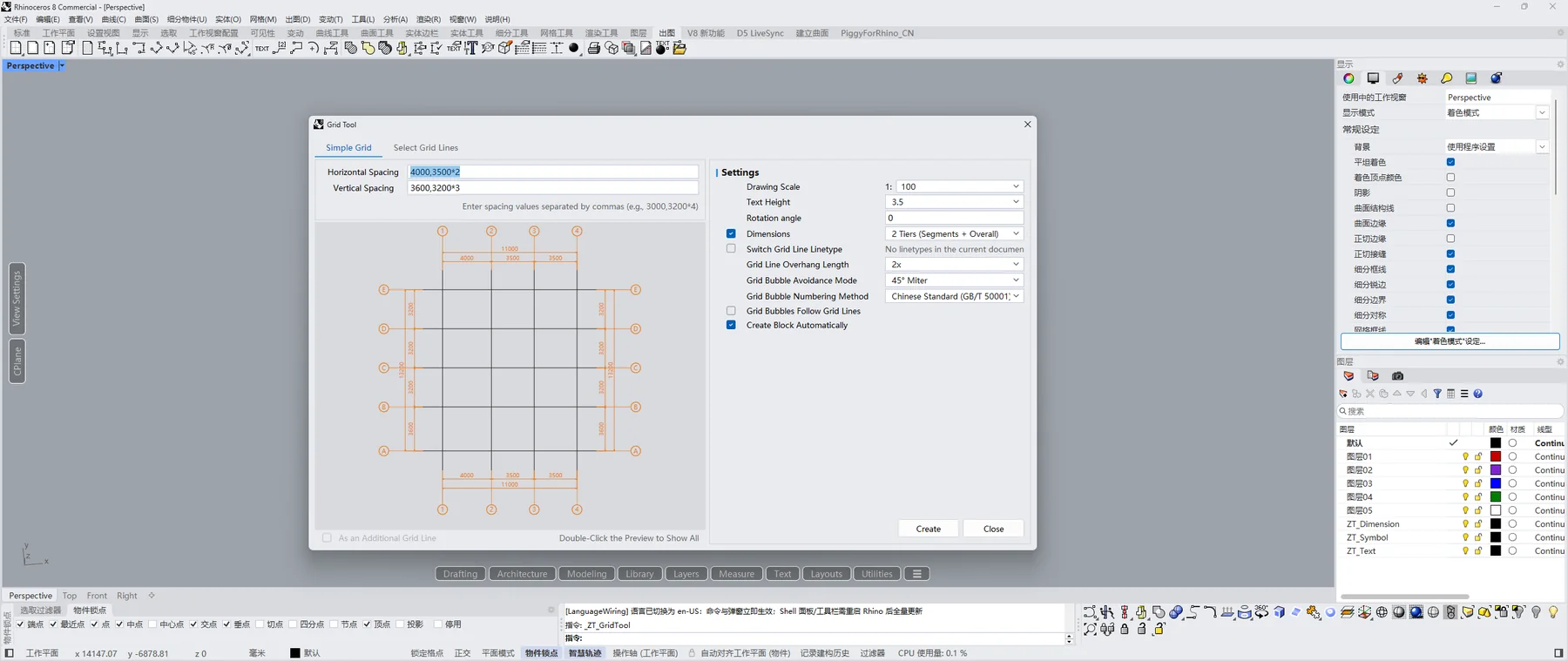
Set the grid, then draw walls. Grid bubbles are grouped automatically; walls can be trimmed and capped without having to stitch lines back together.
- ZT_GridTool
- ZT_SmartWall
- ZT_SmartWallTrim
- ZT_QuickWallCap
- ZT_ConnectParallel
Doors and libraries
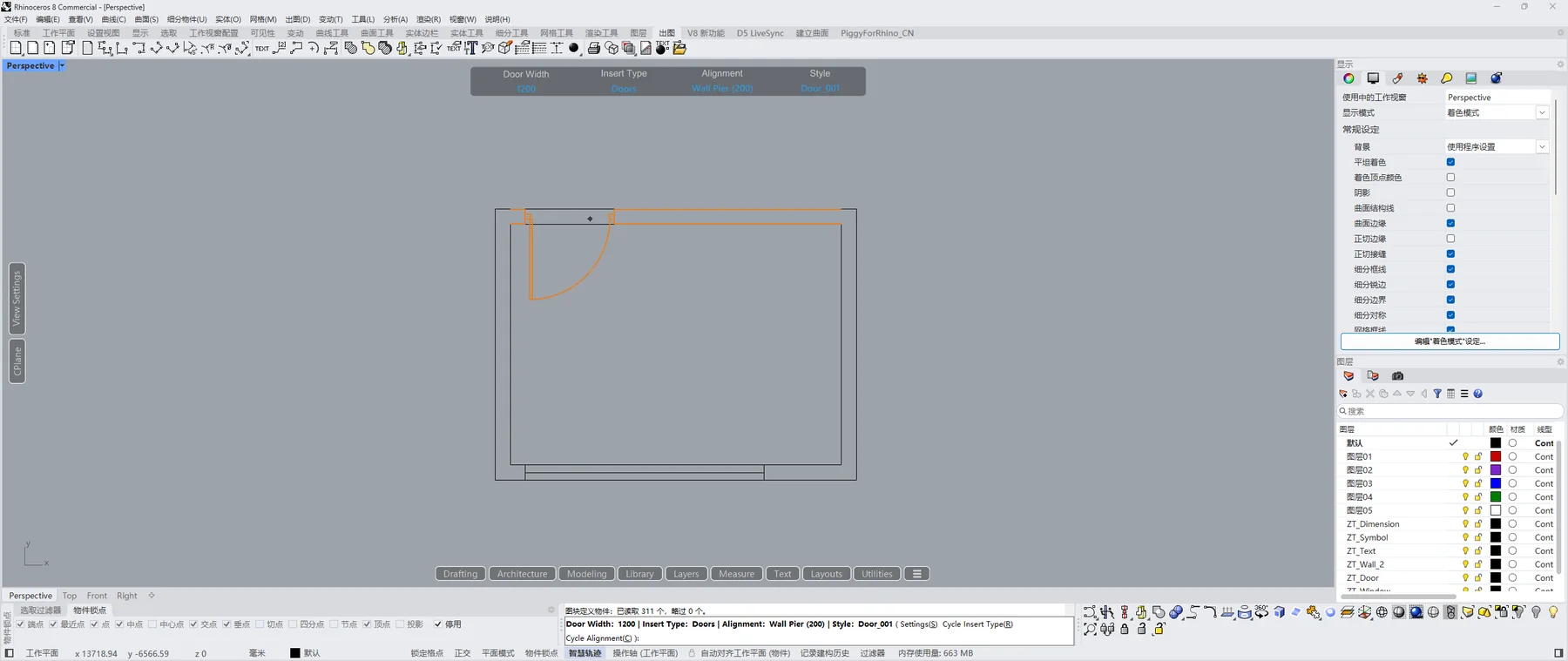
Insert doors parametrically; the door leaf and swing line are drawn in plan in one step. Preview the 2D and 3D libraries before placing anything.
- ZT_InsertDoor
- ZT_ModelLibPreview
- ZT_UserLibrary_2D
- ZT_UserLibrary_3D
- ZT_FlipBlock
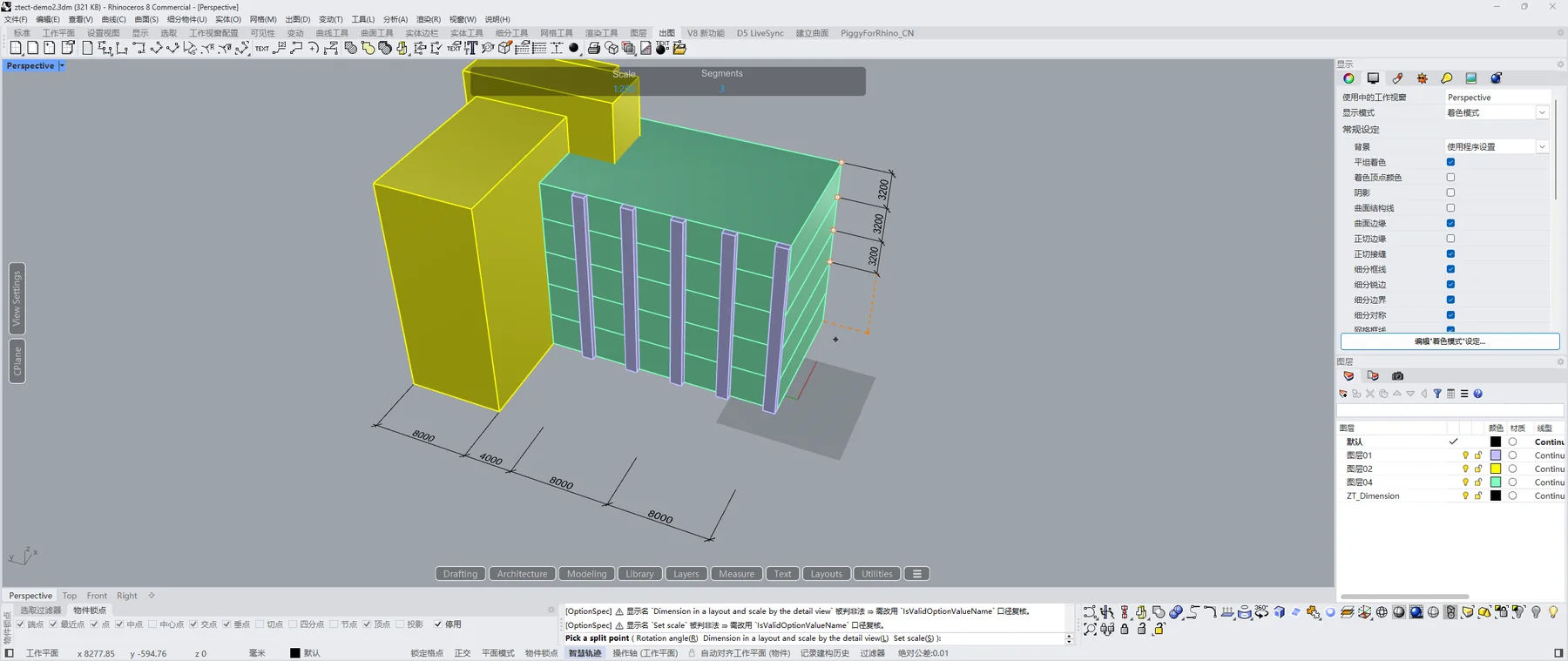
Dimensions and symbols
Continue, merge and convert dimension chains. Level marks, section marks, reference bubbles, slope marks and break lines each have a dedicated command.
- ZT_DimAlign
- ZT_DimContinue
- ZT_ArchSymbol
- ZT_ArchSymbol_ElevationMark
- ZT_ArchSymbol_SectionMark
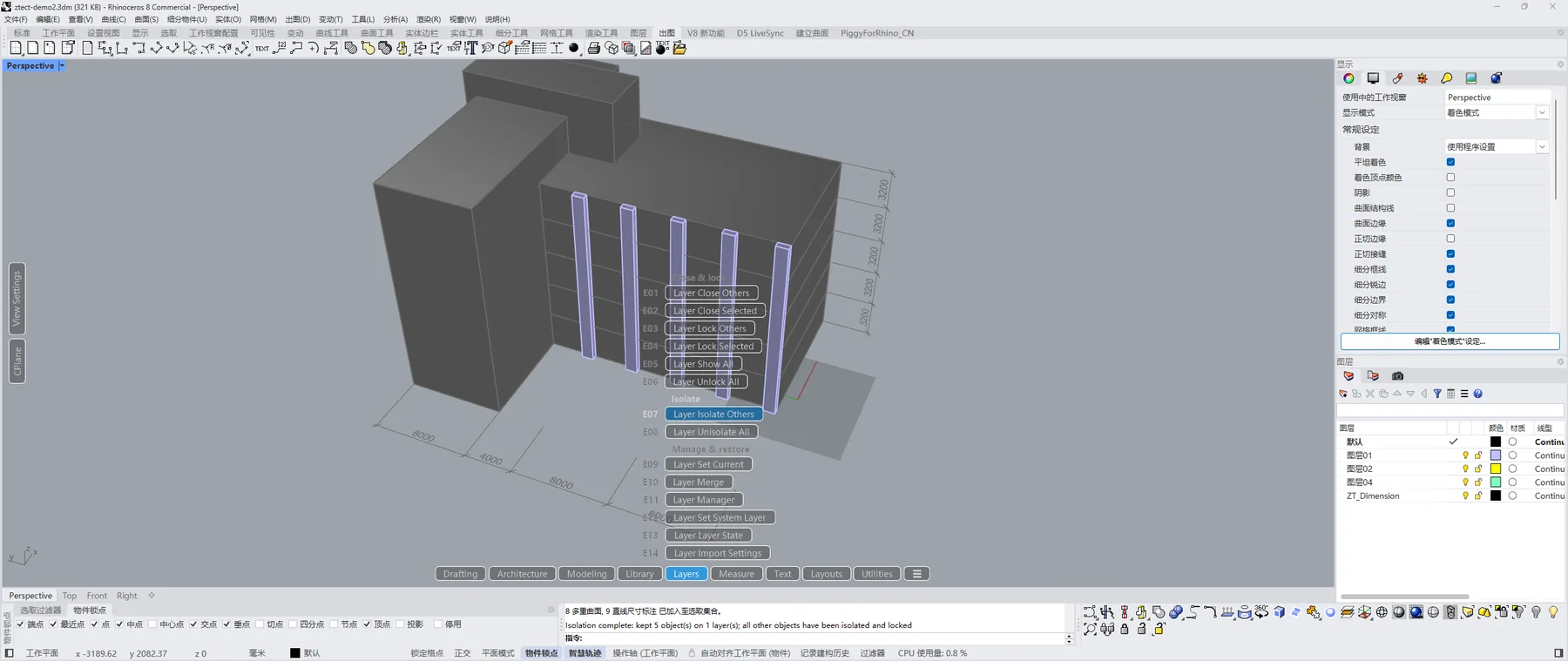
Layers, blocks and sheets
Turn off, isolate and merge layers in one click; the block editor updates in place; detail view settings keep the detail view scale under control.
- ZT_Layer_Manager
- ZT_Layer_IsolateOthers
- ZT_Layer_Merge
- ZT_BlockEditor
- ZT_DetailViewSetting
All 60+ commands
Drafting · 5
- ZT_ConnectParallel
- ZT_FlattenGeometry
- ZT_Stretch
- ZT_FlipBlock
- ZT_RevCloud
Architecture · 6
- ZT_SmartWall
- ZT_SmartWallTrim
- ZT_QuickWallCap
- ZT_InsertDoor
- ZT_GridTool
- ZT_GridBubbleRegroup
Modeling · 7
- ZT_LinearCopy
- ZT_RandomCopy
- ZT_QuickSlice
- ZT_ScaleXYZ
- ZT_PlaneSplit
- ZT_PushPull
- ZT_BlockEditor
Library · 12
- ZT_ArchSymbol
- ZT_ArchSymbol_ElevationMark
- ZT_ArchSymbol_BuildingCoord
- ZT_ArchSymbol_SectionMark
- ZT_ArchSymbol_ElevationIndex
- ZT_ArchSymbol_SectionIndex
- ZT_ArchSymbol_SlopeMark
- ZT_ArchSymbol_BreakLine
- ZT_ArchSymbol_ArrowLeader
- ZT_ArchSymbol_MaterialTag
- ZT_UserLibrary_2D
- ZT_UserLibrary_3D
Layers · 14
- ZT_Layer_CloseOthers
- ZT_Layer_CloseSelected
- ZT_Layer_LockOthers
- ZT_Layer_LockSelected
- ZT_Layer_ShowAll
- ZT_Layer_UnlockAll
- ZT_Layer_IsolateOthers
- ZT_Layer_UnisolateAll
- ZT_Layer_SetCurrent
- ZT_Layer_Merge
- ZT_Layer_Manager
- ZT_Layer_SetSystemLayer
- ZT_Layer_LayerState
- ZT_Layer_ImportSettings
Dimensions · 9
- ZT_DimContinue
- ZT_DimAlign
- ZT_DimMerge
- ZT_DimExtend
- ZT_DimScaleConverter
- ZT_MatchAnnotation
- ZT_DimDefpointMove
- ZT_DimTextLayout
- ZT_QuickMesure
Text · 4
- ZT_TextNumbering
- ZT_TextLayout
- ZT_TextBatchEdit
- ZT_EqualizeTextFormat
Sheets · 2
- ZT_DetailViewSetting
- ZT_SyncDrawingScale
Utilities · 3
- ZT_LastCommandLog
- ZT_QuickFilter
- ZT_LineTypeManager
Three steps to get started
Requires Rhino 8.24+ or Rhino 9 on Windows 10/11, 64-bit. A Rhino license is not included.
Open the Package Manager
Type this in the Rhino command line.
PackageManager
Search and install
Search for ztect, install the latest version, then restart Rhino.
Sign in and your trial starts
Your first sign-in adds 7 days. One trial per account; it stacks with any purchased days.
Requirements
- Rhino 8.24+ or Rhino 9
- Windows 10/11, 64-bit
- An internet connection for sign-in and license checks
- Works offline for up to 12 hours
- One active computer per account
- A Rhino 8 & 9 license is required
If ztect does not appear in Package Manager yet, email service@z-archi.com for the installer.
Questions
Anything else: service@z-archi.com.
Does it work with Rhino 7?
No. ZTect requires Rhino 8.24+ or Rhino 9.
Is there a macOS version?
No. Windows 10/11, 64-bit only.
How long is the trial?
7 days on first sign-in, once per account. It stacks with purchased days.
Does it auto-renew?
No. Every purchase is one-time. We do not store your card and do not charge automatically.
Do I need to buy again on a new computer?
No. The license follows your account, not a machine. One computer is active at a time; signing in elsewhere takes over.
How do refunds work?
A first purchase is fully refundable within 14 days if unused. Used orders are not refundable. Email service@z-archi.com with your account email and order number.
Which languages are supported?
Simplified Chinese and English. Switch it in Settings → Appearance → Interface → Language.
Are my drawings uploaded?
No. ZTect does not collect drawing content, Rhino files or file paths. It only processes account data, license data and basic runtime logs.
Draw one sheet before you decide.
The 7-day trial includes all 60+ commands. No payment details required.